Environment variables in App Platform provide a way to store environment information at the container or application levels that your app can access at build or runtime. We also provide many bindable app- and component-level variables, such as the app’s URL or database CA certificate values.
Add Runtime Variables During App Creation
When you create an app, you can add environment variables at the component and app level. Select Encrypt to hide variable values from all build, deployment, and application logs.
You can also declare runtime variables in the app spec by setting the scope to RUN_TIME. See the example below.
Define Runtime Variables After App Creation
In the Apps section of the DigitalOcean Control Panel, click your app, then click the Settings tab. On the Settings page, click the component you want to add runtime variables to. In the Environment Variables section, click Edit, then click Add environment variable.
Fill in the Key and Value fields, then select a Scope. Select Encrypt to hide variable values from build, deployment, and application logs. Click Save to add the variable.
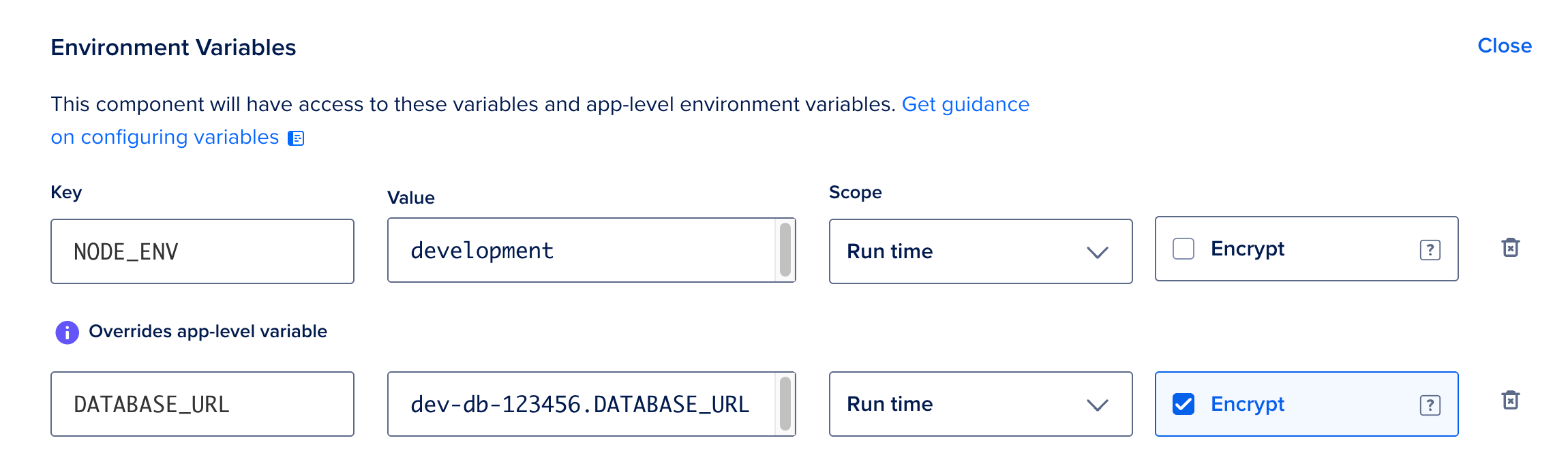
Define Build Time Environment Variables
Set build-time environment variables in the app spec by using scope set to BUILD_TIME, as shown in the following example:
services:
  - name: web
    instance_count: 4
    instance_size_slug: apps-s-1vcpu-1gb
    git:
      repo: "https://github.com/example/repo"
      branch: master
    build_command: "go build ./"
    run_command: "/app/server"
    envs:
    - key: BUILD_ONLY_VAR
      scope: BUILD_TIME
      value: hello world
    - key: RUNTIME_ONLY_VAR
      scope: RUN_TIME
      value: i'm a little teapot
Set Build Time Variables for Dockerfiles
If you are using a Dockerfile to deploy your app on App Platform, environment variables are only available at build time if you have set them using the --build-arg option in Docker before deploying the app.
For example, to access the variable EXAMPLE=your-value during build time, set it in the image using the docker CLI like this:
docker build --build-arg EXAMPLE=your-value
You cannot use this method to access bindable variables at build time. If you are supplying a Dockerfile, bindable variables are only available at runtime.
Define App-Level Environment Variables
Unlike runtime and build-time variables, which are component-specific, app-level variables are accessible to all components at both build and runtime. If a component-level variable (runtime or build time) has the same name as an app-level variable, the component-level variable takes precedence.
When you create an app, you can add app-level variables in the App-level environment variables section of the Create an app screen.
For existing apps, go to the Apps section of the DigitalOcean Control Panel. Click your app, then click the Settings tab. On the Settings page, in the App-Level Environment Variables section, click Edit.
Encrypt Environment Variables
Similar to GitHub secrets, App Platform can store sensitive variables as encrypted values, such as passwords, API keys, and other sensitive information. When you select the Encrypt option, App Platform encrypts the value you entered and stores it in the app spec.
Encrypted variables are decrypted in your application’s runtime environment. They can be visible to other team members who can access the application’s console or other users who can change the app’s code or configuration. For example, a user on your team could use the console to view the value of an encrypted variable, or modify the app’s configuration or code to export the decrypted value from the runtime environment.
To ensure that your application’s encrypted variables are secure, we recommend giving Owner and Member roles only to trusted team members who require access to the application’s console. We also recommend enforcing pull request reviews for all code and configuration changes to your app.
Use Bindable Variables
Bindable variables let environment variables reference dynamic app-specific values at build and runtime. These values are provided by DigitalOcean and are app-wide or component-specific.
To set a bindable variable as an environment variable, go to the Apps section of the DigitalOcean Control Panel. Click your app, then click the Settings tab.
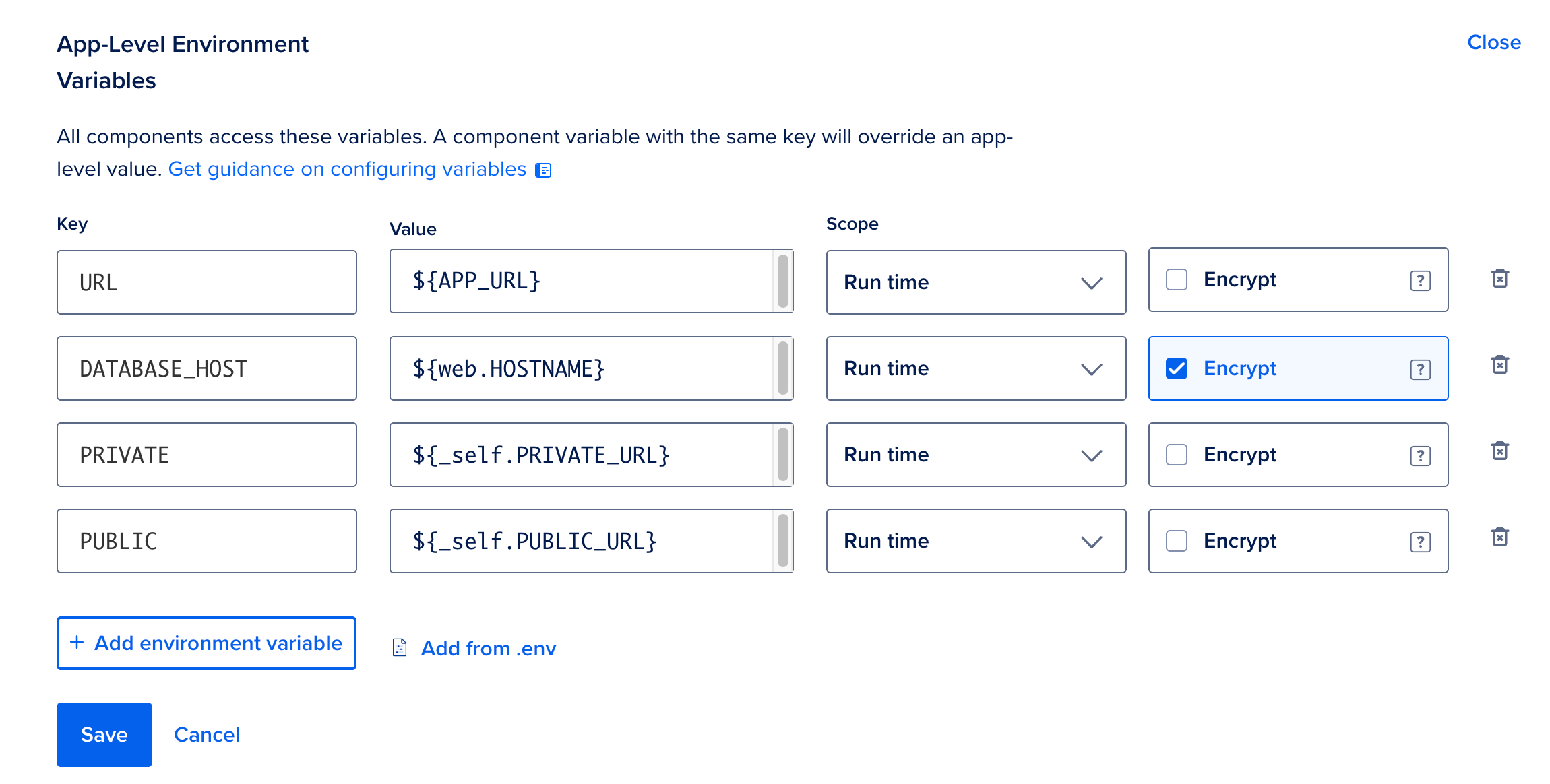
On the Settings page, in the App-Level Environment Variables section, click Edit, then click Add environment variable.
Fill in the Key and Value fields, then select a Scope. Select Encrypt to hide variable values from build, deployment, and application logs. Click Save to add the variable.
For example, to add the app’s URL as an environment variable, enter URL in the Key field and ${APP_URL} in the Value field.
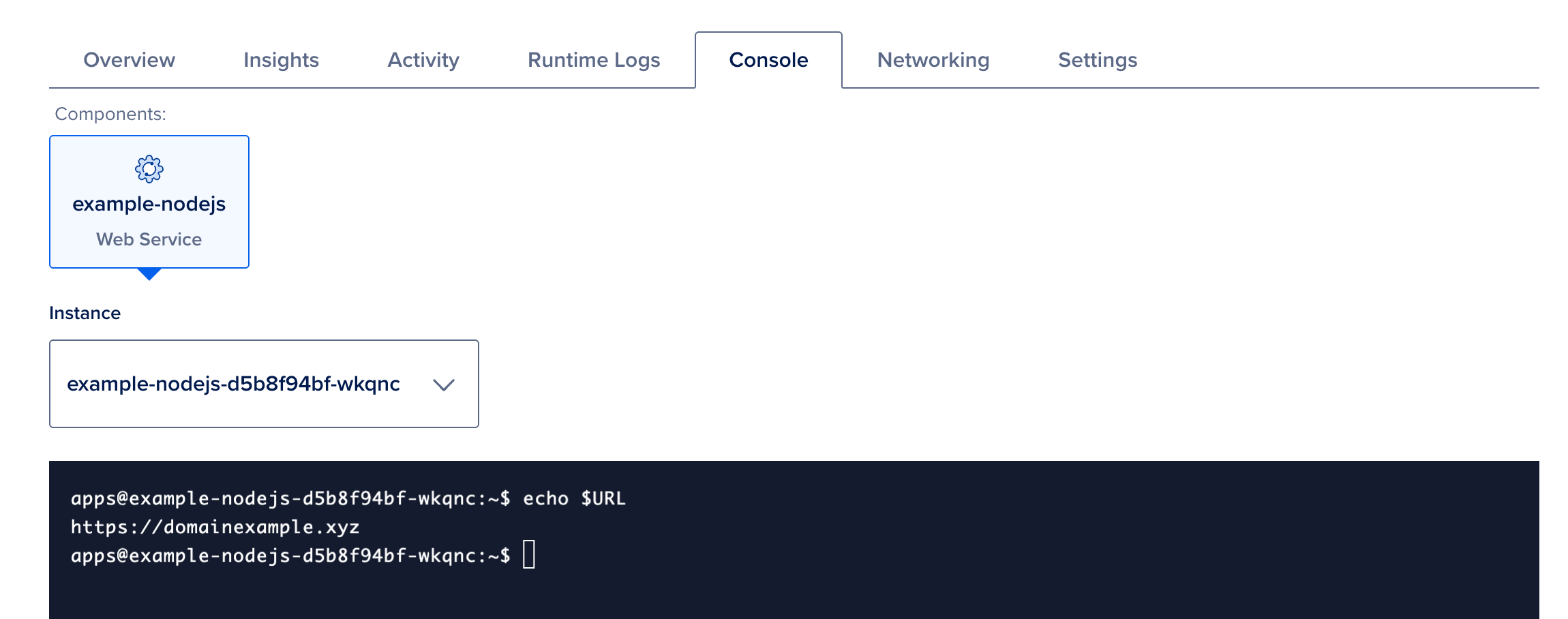
To verify an environment variable, open the Console tab and run:
echo $<name-of-environment-variable>
App-Wide Variables
Use ${BINDABLE_NAME} for these variables.
${APP_DOMAIN}: Application’s primary domain.${APP_URL}: Application’s primary domain in http format (for example, https://my-domain.com).${APP_ID}: Application’s ID.
Component-Specific Variables
Component-specific variables need to be prefixed by the component name, for example ${my-service.BINDABLE_NAME}. The _self prefix can be used to reference the current component, for example ${_self.BINDABLE_NAME}.
Services
${_self.PRIVATE_DOMAIN}: Internally used domain name used for communication between multiple services.${_self.PRIVATE_URL}: Internally used domain in HTTP format suffixed with the port.${_self.PRIVATE_PORT}: Internally used HTTP port.${_self.COMMIT_HASH}: git commit hash used for this build.${_self.PUBLIC_ROUTE_PATH}: Routable path used for this service publicly.${_self.PUBLIC_URL}: public URL of this component in http format including the public route.
Static Sites
${_self.COMMIT_HASH}: git commit hash used for this build.${_self.PUBLIC_ROUTE_PATH}: Public routable path used for this service.${_self.PUBLIC_URL}: Public URL of this component in HTTP format, including the public route.
Workers
${_self.COMMIT_HASH}: git commit hash used for this build.
Databases
When you bind a managed database to an App Platform component, App Platform automatically injects connection information as environment variables at runtime. These values allow your app to connect to the database without hardcoding credentials.
If your app and database are deployed in the same VPC, the database connection variables resolve to that database’s private network endpoint. This allows secure in-VPC communication without exposing the database over the internet.
${use_your_database_name.HOSTNAME}: Fully qualified database hostname. If the app and database share a VPC, this resolves to the database’s private hostname.${use_your_database_name.PORT}: Port used for connections.${use_your_database_name.USERNAME}: Username for the database.${use_your_database_name.PASSWORD}: Password for the database user.${use_your_database_name.DATABASE}: Default database name for the user.${use_your_database_name.DATABASE_URL}: Connection string (uses the private hostname if applicable).${use_your_database_name.JDBC_DATABASE_URL}: JDBC-prefixed connection string for Java applications.${use_your_database_name.REDIS_URL}: Redis connection string (Redis only).${use_your_database_name.CA_CERT}: CA certificate for managed databases.
(PostgreSQL Only) If your database uses connection pools, you can reference pool-specific variables using the syntax ${<database component name>.<pool name>.<VARIABLE_NAME>}. For example, ${mydb.mypool.DATABASE_URL}.
Log Forwarding
${_self.FUNCTIONS_LOG_DESTINATION_JSON}: A JSON string with details of all configured log forwarding destinations.
Functions
${_self.COMMIT_HASH}: git commit hash used for this build.${_self.PUBLIC_ROUTE_PATH}: Public routable path used for this service.${_self.PUBLIC_URL}: Public URL of this resource in HTTP format, including the public route.${_self.FUNCTIONS_LOG_DESTINATION_JSON}: JSON-serialized version of the log_destinations field in the app spec.